How to Favorite a Workout or Series
With over 12,000 workouts in the iFIT Library, you’re bound to stumble upon workouts or series that pique your interest as you’re browsing. If you’re not quite ready to sweat but want to tackle a workout or series later, you can “favorite” it to ensure it doesn’t get lost in the shuffle.
Adding a favorite workout or series
To favorite a workout or series in the iFIT app or on your iFIT-enabled equipment, follow these steps:
Step 1: Be sure you’re logged in to your iFIT account.
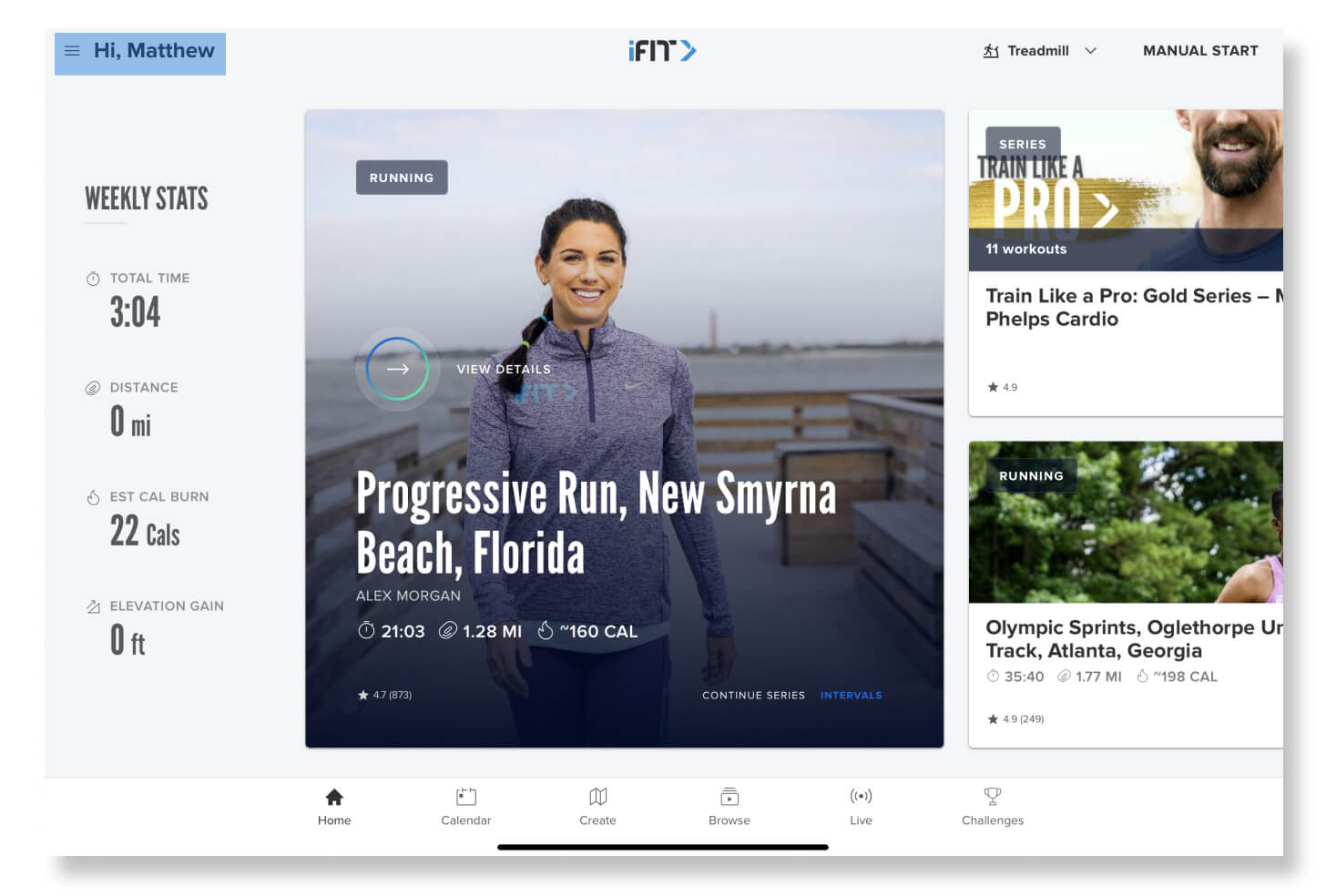
Step 2: Locate the workout or series you’re interested in favoriting. You can use the “Browse” and “Search” options to find workouts. Tap on the workout or series you want to favorite.
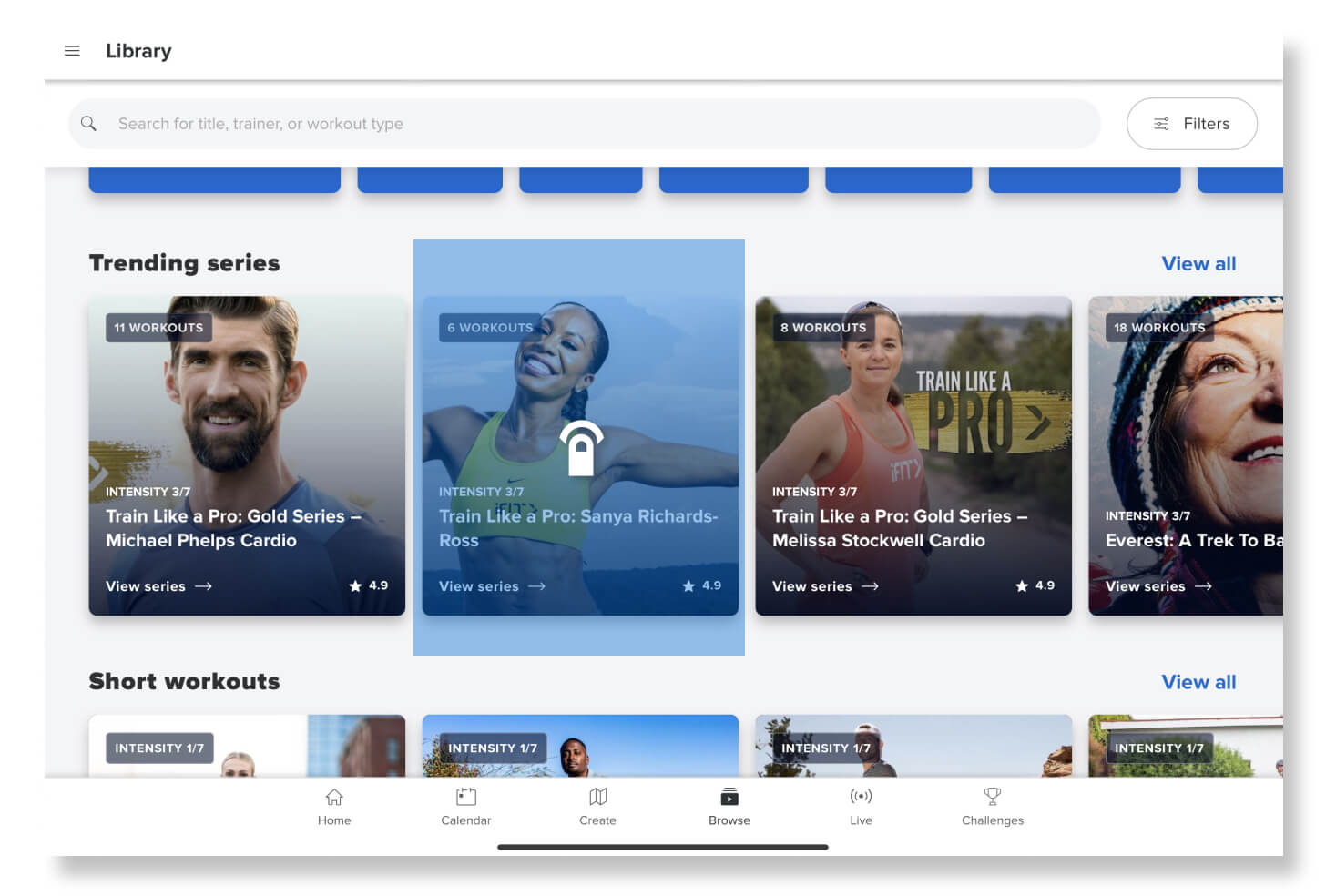
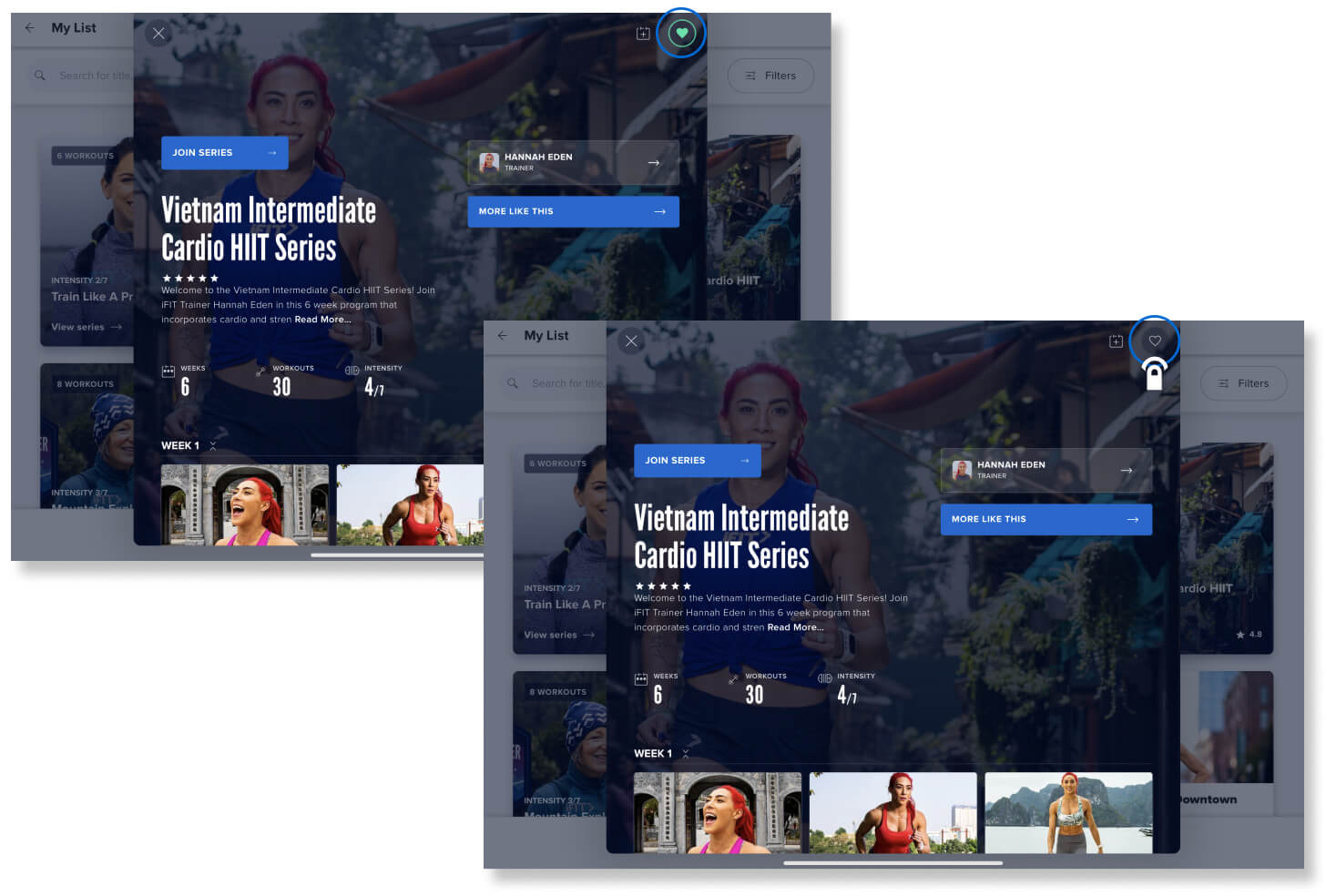
Step 3: This will open the workout information screen. Tap on the heart icon in the top right corner. You’ll know you’ve successfully added a workout or series to your Favorites list when the heart icon turns a solid color.
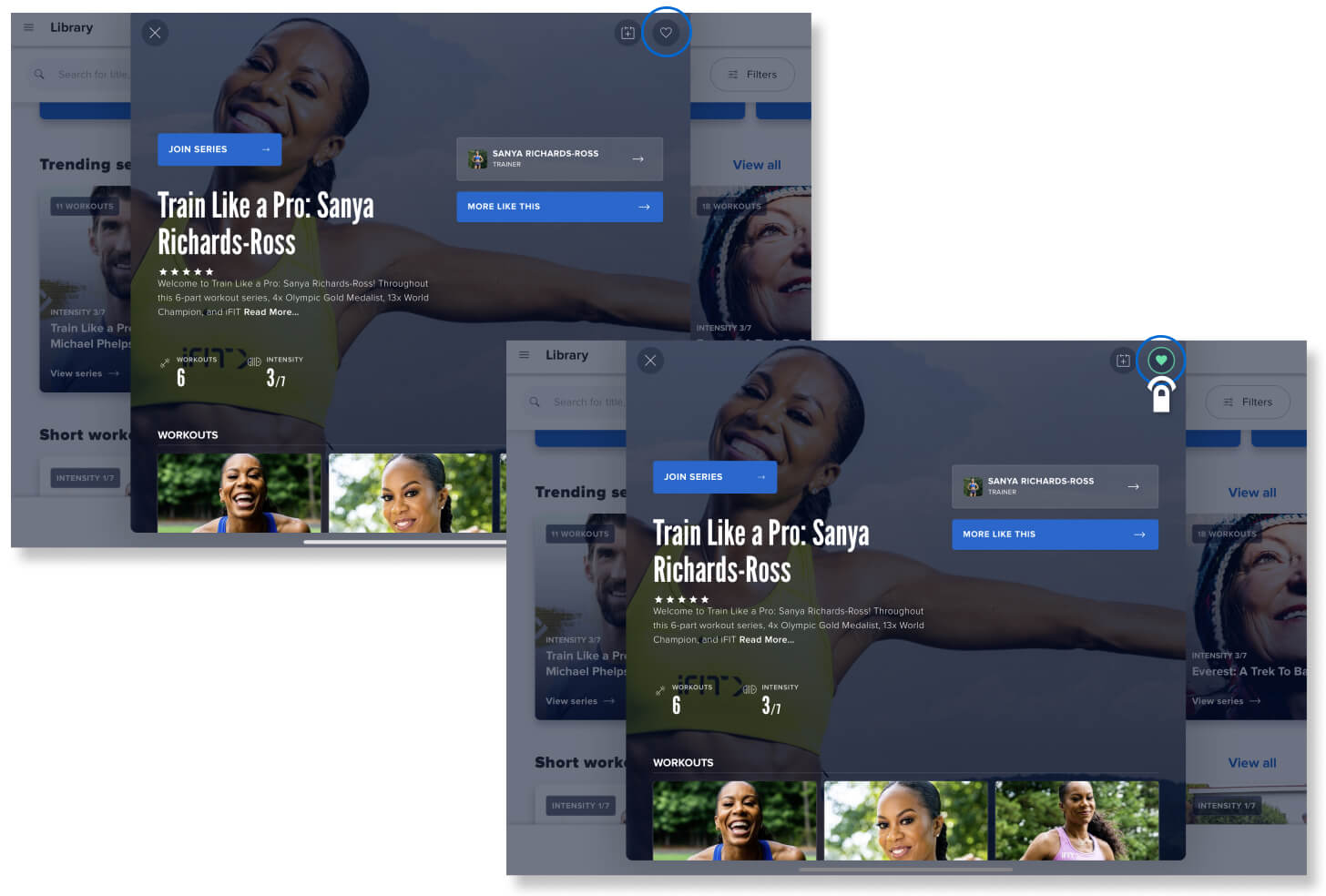
Accessing your favorite workouts and series
To access your favorite workouts and series in the iFIT app or on your iFIT-enabled equipment, follow these steps:
Step 1: Be sure you’re logged in to your iFIT account. Then tap “Browse” in the bottom menu.
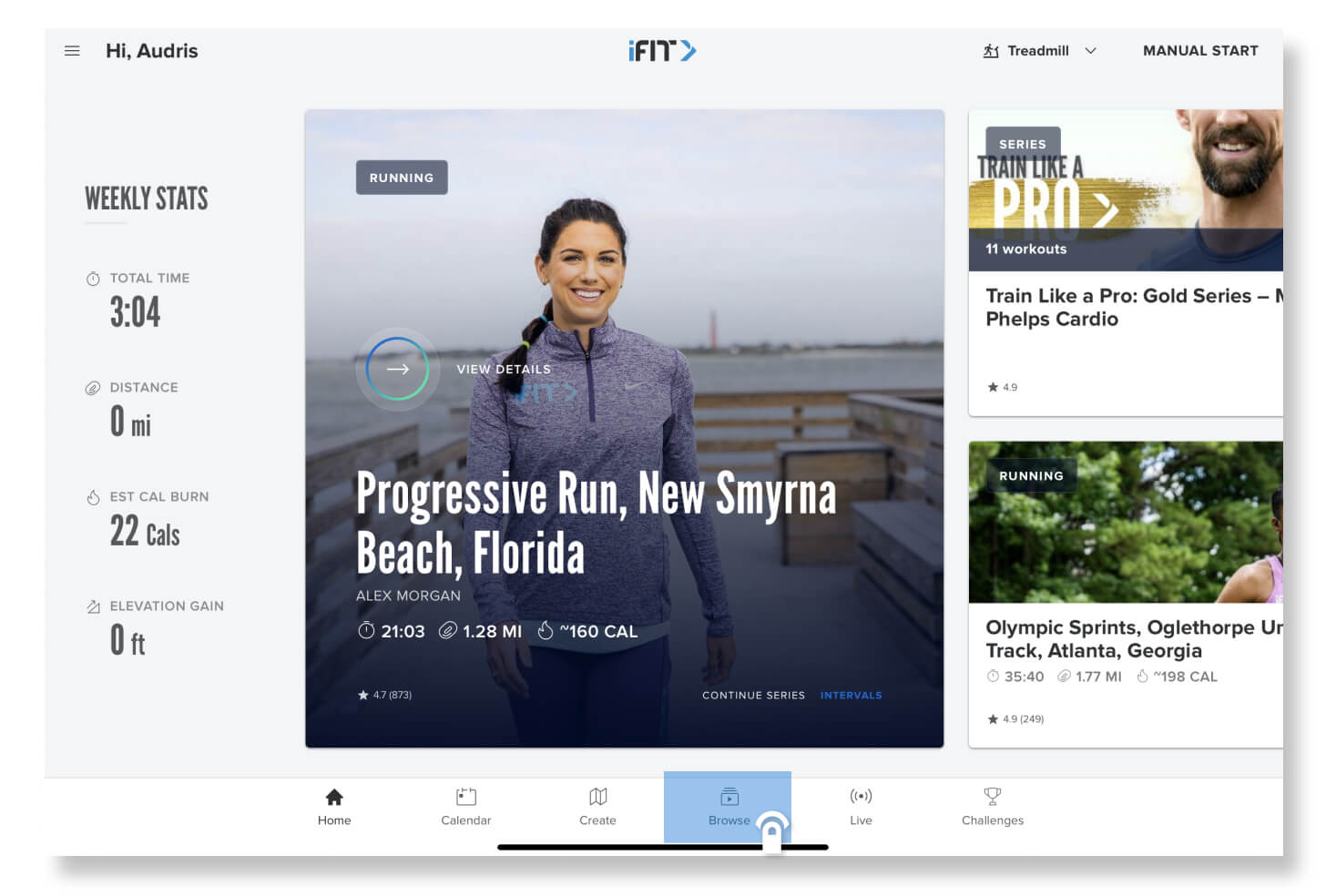
Step 2: On the far right of “My List,” tap the blue “View All” link.
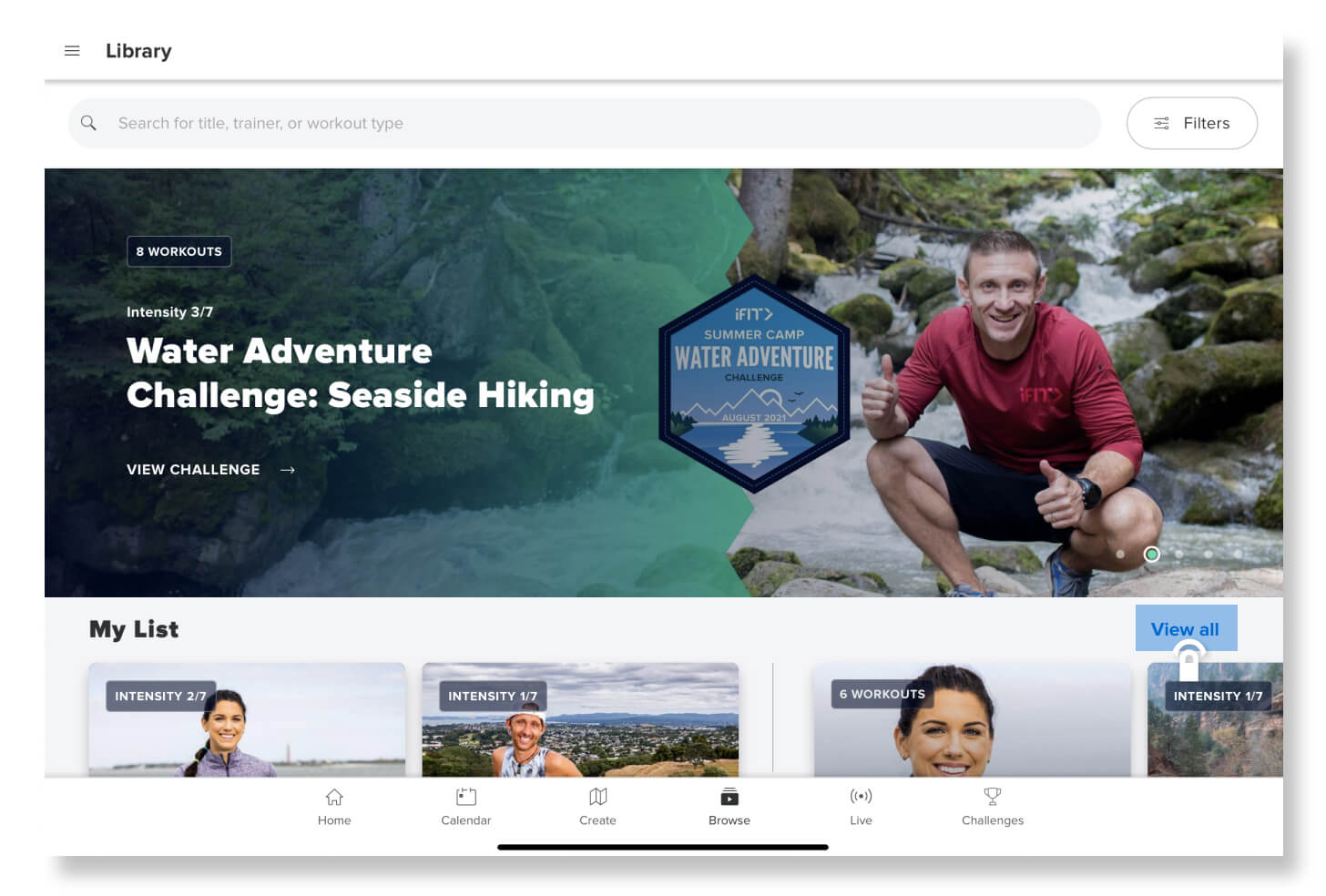
Step 3: On the far right of “My Favorites,” tap the blue “View All” link. The workouts and series you’ve added to favorites will appear here.
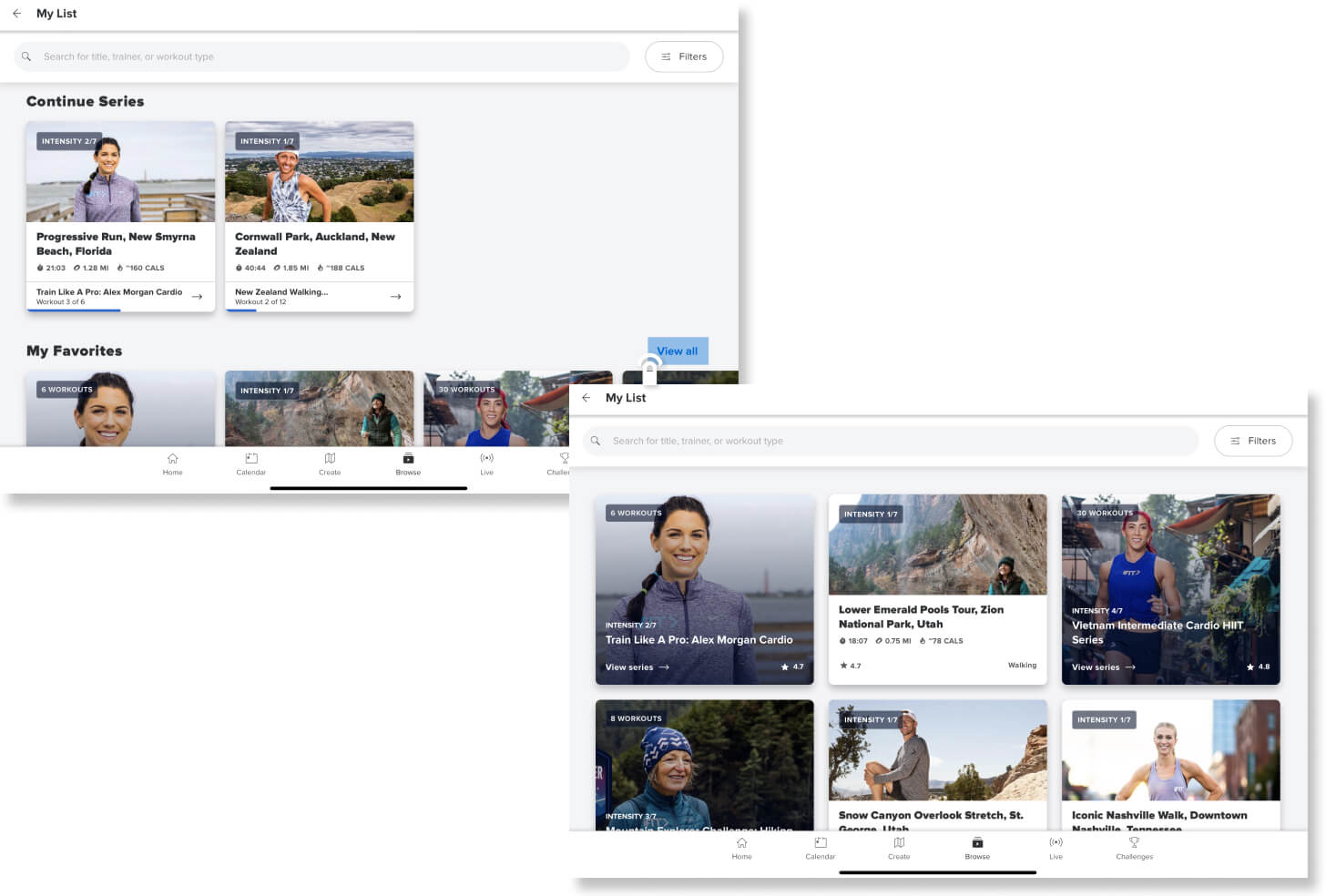
Removing favorite workouts and series
To remove a workout or series from your Favorites list in the iFIT app or on iFIT-enabled equipment, follow these steps:
Step 1: Navigate to your “My Favorites” list. Tap on the workout or series you’d like to remove to bring up the workout information screen.
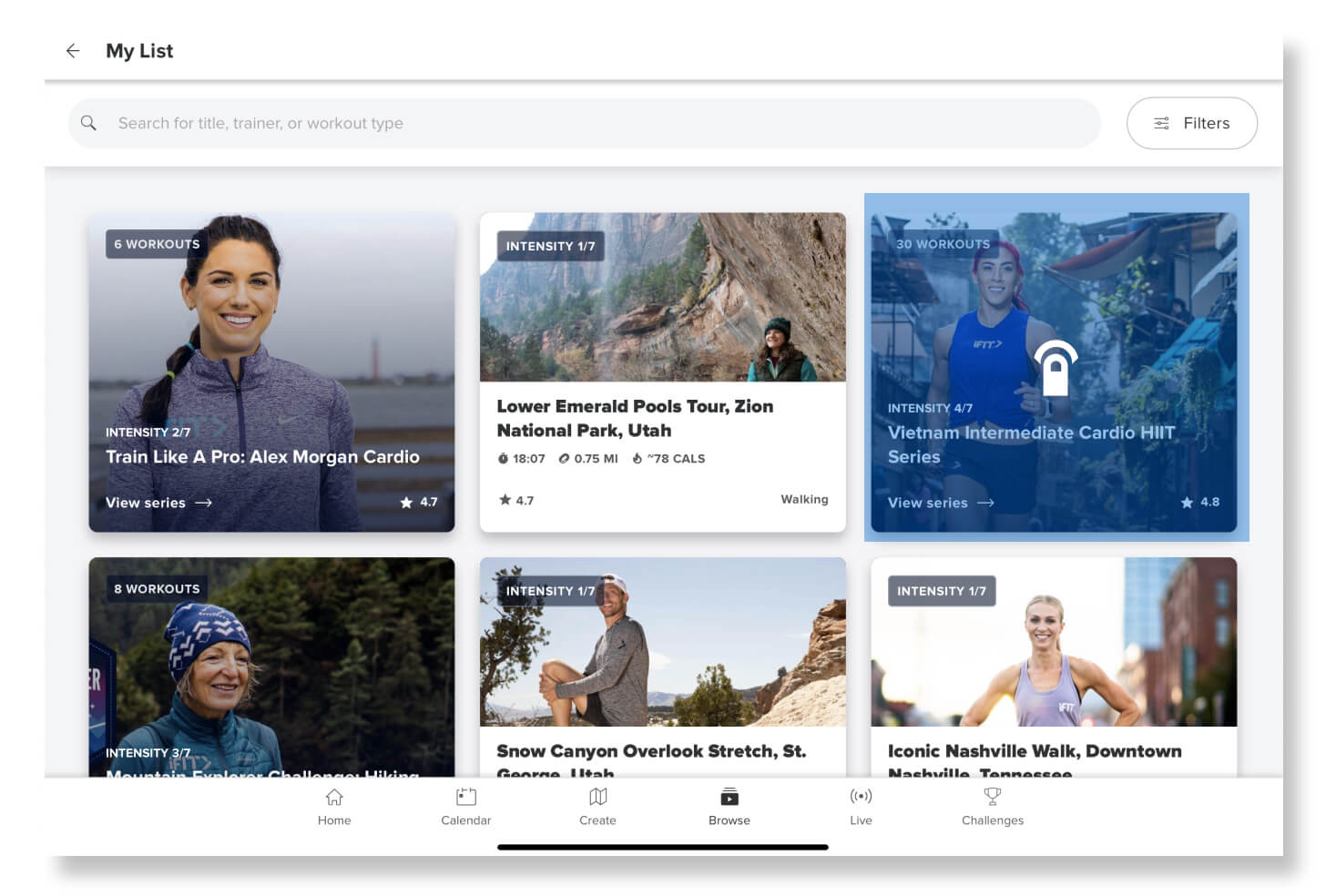
Step 2: On this screen, tap the heart icon in the top right corner. You’ll know you’ve successfully removed a workout or series from your Favorites list when the heart icon is no longer a solid color.
Let’s get some workouts and series on your Favorites list! Log in to your iFIT account and start browsing a wide variety of workouts today.
Disclaimer: This blog post is not intended to replace the advice of a medical professional. The above information should not be used to diagnose, treat, or prevent any disease or medical condition. Please consult your doctor before making any changes to your diet, sleep methods, daily activity, or fitness routine. iFIT assumes no responsibility for any personal injury or damage sustained by any recommendations, opinions, or advice given in this article. Always follow the safety precautions included in the owner’s manual of your fitness equipment.
You might also like

BenefitHub
Access exclusive pricing to iFIT’s top brands, only available through your BenefitHub program.
September 19, 2020
Beneplace
Access exclusive pricing to iFIT’s top brands, only available through your Beneplace perks program.
September 19, 2020
VennGo
Access exclusive pricing to iFIT’s top brands, only available through your VennGo program.
September 19, 2020